
Adding UGC to your own product media carousel
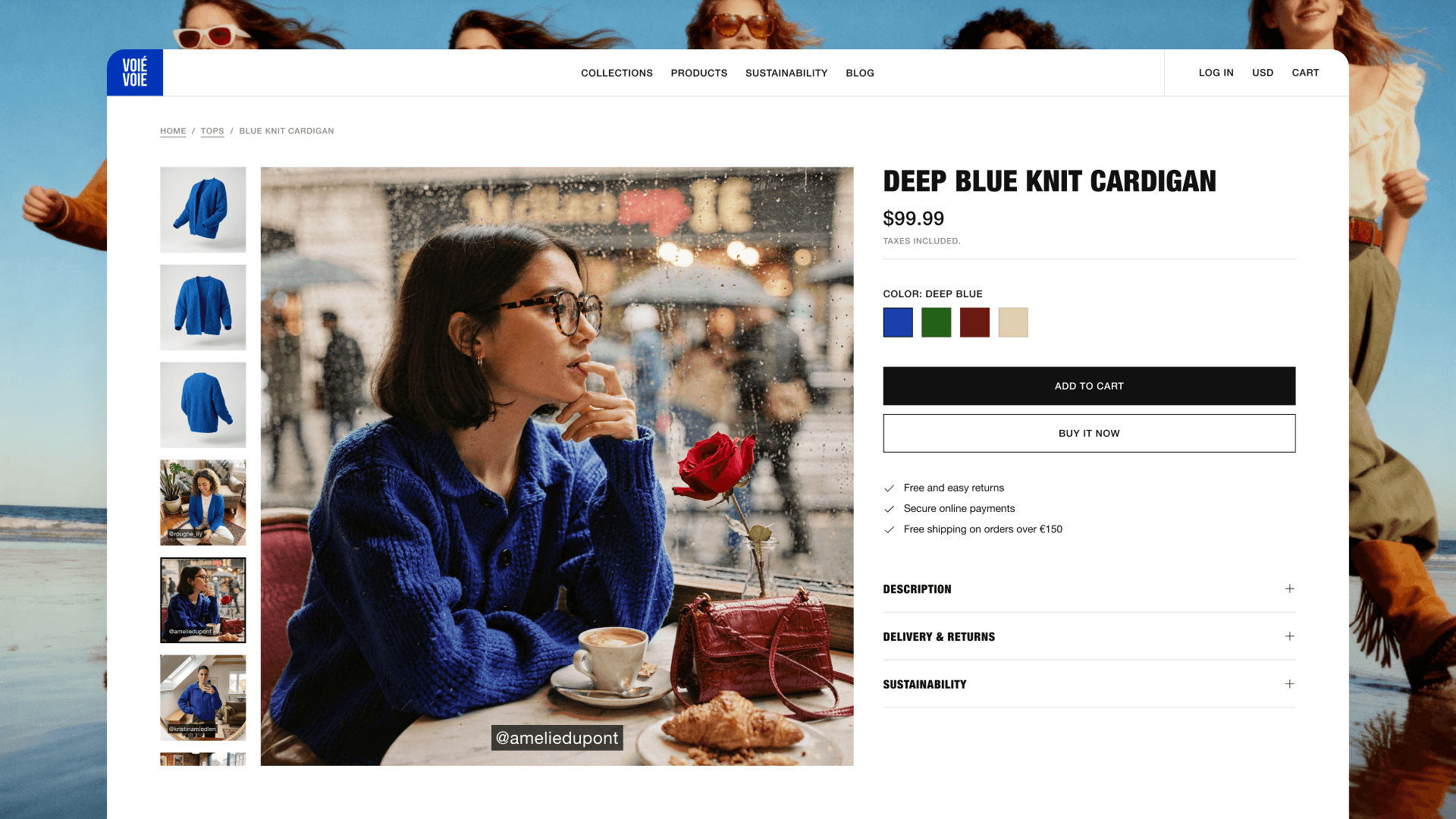
Most brands that collect user-generated content (UGC) start in one place: showing it on their product pages. We covered that in full in how to display UGC on product pages: the dynamic gallery, the relevance sorting, what happens when a product has no content yet.
We've noticed increased interest in also showing selected UGC in the main product media carousel itself. This approach lets you mix UGC posts in alongside your in-house content, in the same carousel shoppers already swipe through. Today we're focusing on why to do it, how to keep it high quality, and how to actually build it with Cevoid.
TL;DR
- Two layers work better than one: a dedicated UGC section that shows all the content for a product, and a few high-quality, hand-picked posts inside the product media carousel itself.
- On the admin side, the content team marks carousel-worthy posts with a label during the normal review pass. No extra workflow, no code.
- On the developer side, one API call returns a product's labeled posts. Render them as slides in your existing carousel, with the creator's handle and a link back to the original post.
Why brands bring UGC into the product media carousel
Three reasons come up most.
The first is content volume. A product shoot is expensive and finite, so most products have a few in-house images and nothing more. A rich product image carousel needs more good frames than that, and reshoots are slow. Customer photos and videos give the carousel more to show, and they keep arriving as people post.
The second is range. In-house photography captures the product one way: one setting, one or two models, controlled light. UGC shows the same product across rooms, bodies, climates, and use cases a single shoot can't plan for. A shopper scrolling the product gallery sees the jacket on someone built like them, the lamp in a room that looks like theirs. That range sits right where the shopper is already looking, since the media carousel is the most-viewed element on the page.
The third, and the one that matters most, is social proof. What separates UGC from your other content is that a real person chose the product, used it, and posted about it. In-house photography and AI-generated images can both look polished, but neither carries that signal, because no customer stands behind them. Showing the creator's social handle, or linking back to the original post, is what makes the social proof visible. It tells a shopper the image is genuine rather than produced, which is what tips a decision. Drop the attribution, and a customer's photo reads as just another product shot.
The approach we recommend: two layers
The strongest setup runs UGC in two places at once, each doing a different job.
A dedicated UGC section further down the product page shows all the content for that product. This is where breadth lives: every environment, every body type, every angle, the full authentic spread. It's handled automatically by Cevoid's dynamic product page gallery.
The product media carousel, up top beside your in-house content, shows only a hand-picked few. Because it sits in the highest-attention slot, the bar is higher there. Keeping it selective costs you nothing, because the full range stays available in the section below.
A brand doing it well
We think the Nordic interior retailer Royal Design does this well. Their product pages mix customer photos into the media carousel next to the brand's own shots, each credited with the creator's handle, with the full UGC gallery below.
How it works
When you work with UGC in Cevoid, you tag posts with the products they feature. Those product tags make each post shoppable, and they're the engine behind the dynamic product page gallery, sending every post to the right product page automatically. The same product tags can feed your own product media carousel.
Including UGC in your product media carousel takes some work from your developers, using the Cevoid API. Once that's in place, everything else happens on the admin side.
Two best practices keep the carousel strong. First, hand-pick what goes in. The API returns every post tagged with a given product, which is more than belongs in a polished carousel. A dedicated post label on the posts that qualify keeps the carousel to what your team picks.
Second, carry the creator's handle and the original-post link into the carousel. The attribution is what made the content worth adding in the first place.
Set it up: the admin side
Create a post label in Cevoid, named for the job (for example, "PDP Carousel"). As your team reviews incoming content, they apply that label to the posts that qualify, in the same review pass where they already approve and product-tag posts. Applying the label is the only thing the carousel adds to your normal UGC workflow.
Set it up: the developer side
The build is light: you fetch a product's posts from one endpoint, then render them as slides in the carousel you already have. Calls go to https://api.cevoid.com with your API key in an x-api-key header; see authentication for the setup.
Fetch the product's posts. Call the v1 product posts endpoint with the product's external ID. The limit parameter caps how many you pull back (max 25):
Loading...
{id} is the product's external ID, the same one you send in your product catalog.
Filter to your label (optional, recommended). If your team marks carousel-worthy posts with a label, add a filter to the same call so it returns only those:
Loading...
The filter value is a JSON array, shown unencoded here for readability; URL-encode it before sending.
Attribute the creator (optional, recommended). Render the creator's name or handle on top of each image, and link the slide back to the original post. A trimmed response shows where the fields live:
Loading...
uploadedBy.username is the handle to render. instagramUrl is only present when the post came from Instagram, so skip the link for posts from other sources.
Optimize the images. Image URLs come back full-size by default. Append ?class=<size> for a pre-sized width and use srcset across breakpoints, so a carousel slide isn't loading a hero-resolution file:
Loading...
Render and refresh. Add the returned posts as slides in your existing media carousel. When a shopper switches product variant, re-fetch for the new variant so the carousel matches what they're viewing.
What you get
Both layers come from a single curation pass: the content team curates by labeling, a developer wires it once, and after that every post your team approves and labels flows to the carousel on its own.
If you haven't shown UGC on your product pages at all yet, start with the product page gallery and add the carousel once it's live.
See what else Cevoid's UGC module can do, or book a demo with our team for a 1:1 walkthrough.