
How to display UGC on product pages with Cevoid
A visitor on a product page is one step from a decision. They searched or clicked their way there, they're interested, and what they need now is inspiration and confidence: ideas for how the product fits into their life, and proof that it already fits someone else's. That's what user-generated content (UGC) provides. Authentic photos and videos show real people wearing the t-shirt, living with the sofa, hanging the poster in an actual hallway. If you collect UGC, the product page is the first place it should go.
TL;DR
- Product page visitors are already interested. UGC adds the inspiration and the proof that tip a decision: the product in real use, in settings in-house content never reaches.
- Show it in a dedicated UGC gallery close to the main product section, mixing photos and videos. Surfacing the creator behind each post, with their handle, caption, and details about them, deepens the social proof.
- With Cevoid, one dynamic gallery covers every product page. The right posts load for each product automatically, and pages with not enough posts yet can borrow from similar products, so every page shows the most relevant content available.
Why UGC belongs on the product page
The product page is where most brands want to start with UGC, ahead of homepages, emails, and ads. The instinct is right. By the time a shopper gets there, the questions are specific: does it fit people like them, does it look like the photos once it's in someone's home. UGC answers exactly those questions.
In-house content does one job well. It shows the product accurately, in its best light, usually on one model in one setting. UGC does the opposite job. The same jacket appears on different bodies and in different weather; the same armchair shows up in small apartments, summer houses, and rooms with toddlers. It puts the product in far more perspectives and use cases than a brand could ever plan a shoot for, which is why it's an addition rather than a replacement: in-house content sells the product, and UGC makes it relatable and exciting.
That breadth works two ways. It inspires, surfacing styles and use cases a shopper hadn't considered, and it reassures at the exact moment doubt would otherwise win.
What a good UGC gallery looks like
For most brands the biggest win is a carousel or a larger gallery section featuring that product, with photos and videos side by side rather than one format alone. The combination covers both the quick scan and the closer look at fit and movement.
What turns a photo into social proof is the person attached to it, so show as much context around each post as you have:
- Who posted it. The creator's name or profile, with their social handle.
- Their own words. The original caption, when there is one.
- Details they've shared. Profile attributes they've volunteered, like height or the size they usually buy, where that's relevant to the product.
- What else is in the post. Tags for the other products visible in the photo or video, so the full look or room is shoppable.
Each element confirms there's a real person behind the post. A gallery with handles, captions, and sizing details reads as testimony; a wall of anonymous photos reads as stock.
Where to place it
Close to the main product section is the natural spot. The shopper who scrolls past the buy button is looking for one more reason to say yes, and UGC placed near the product details keeps that proof tied to the product itself. A row or two that opens into more on demand is enough to do the job.
With Cevoid, one widget for every product page
The hard part of UGC on product pages is distribution. A catalog has hundreds or thousands of products, and manually placing content page by page doesn't survive contact with that number. With product tags and a dynamic gallery, the setup is three steps:
- Give every approved post at least one product tag.
- Embed the product page gallery once. On Shopify it's a prebuilt section in the theme editor; on other platforms or headless setups it's a script and div code, or a custom-built CMS module.
- Decide what a page with no posts should do (more on that below).
From there the widget does the routing. When a shopper opens a page, it reads the URL, matches it against your product catalog, and fetches the posts for that product. The lookup runs in milliseconds. Media is lazy-loaded and cached for performance.
Sorting is by relevance, and it happens on its own:
- Posts tagged with the exact variant the shopper is viewing come first.
- Then posts tagged with other variants that share attributes, like the same color in another size.
- Then posts tagged with other variants of the same product.
- If that isn't enough to fill the gallery, AI automatically tops it up with posts tagged with similar products, or the gallery hides itself when there's nothing to show (your choice, covered next).
Within each level, the newest posts lead, so the section stays fresh as content arrives.
Tag a post once and it shows up on the right product page from that moment on. The same tag also feeds collection and category page galleries, so one tagging pass populates three kinds of pages.
When a product has little or no UGC
Every team asks the same question next: what happens on the products nobody has posted about yet? A fair concern, because an empty gallery is worse than none. There are two ways to handle it.
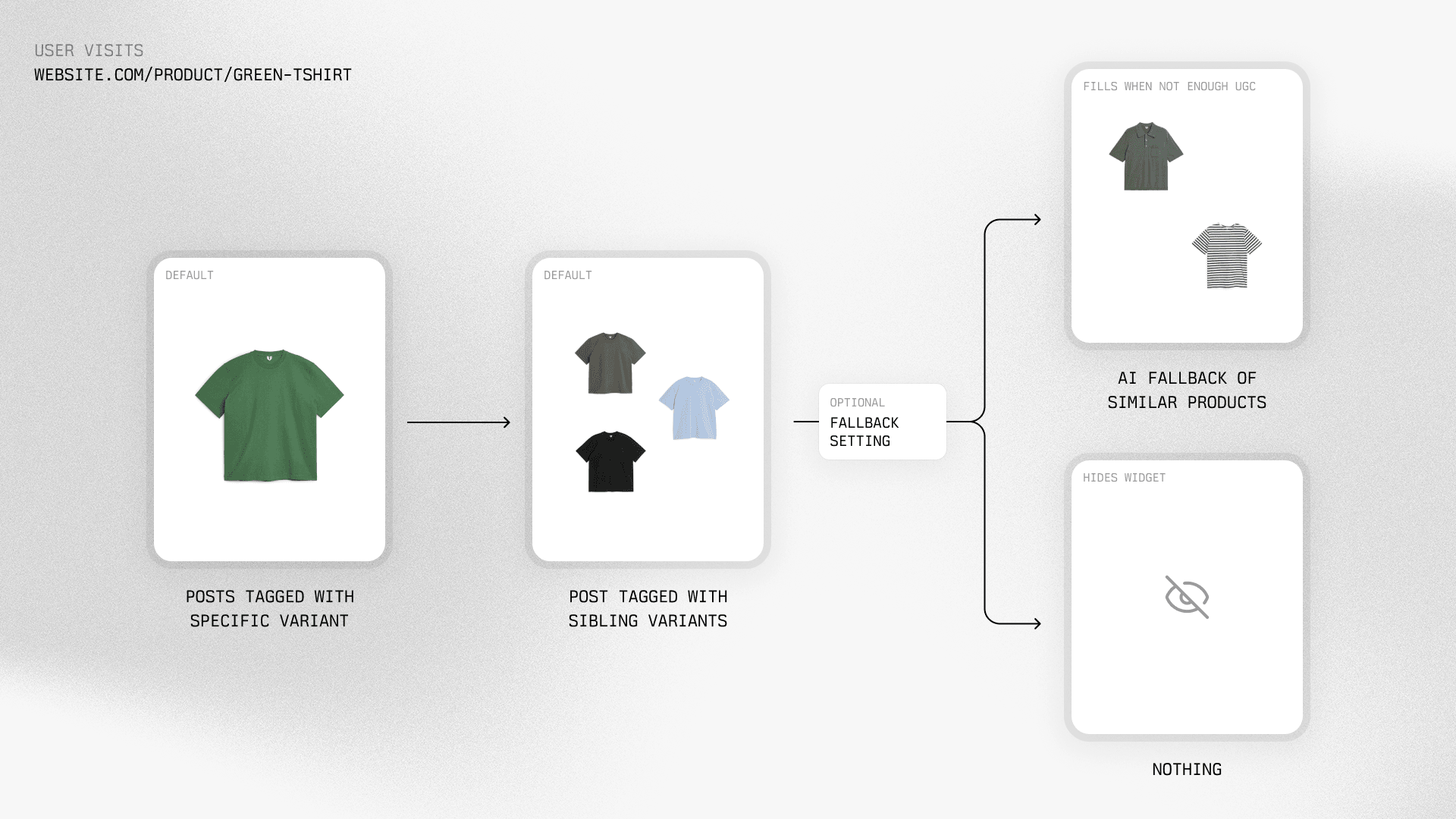
Fill the gap with fallback posts. Cevoid's AI fallback fills the gallery with posts featuring similar products, matched on criteria you can weight: product names, visual appearance, categories and collections, and specs such as color, size, and material. A new lamp with no posts yet borrows from the lamps people have already photographed. It's the same gallery loading the same way; the fallback steps in automatically when there aren't enough tagged posts to fill it.
Fallback content is adjacent rather than exact. For most catalogs that's the right trade, since a shopper browsing lamps is helped by photos of the neighboring lamp. For some it isn't, which is why the second option exists.
Or show nothing at all. Some brands prefer showing nothing over near-matches. With fallback turned off, the product page gallery hides itself on any page without posts, and there's nothing for you to build or design around.
The advanced setup: UGC in your product media carousel
We're seeing more and more brands bring UGC into the product media carousel itself, mixed in with their in-house content. It takes a developer, but it's a light build with Cevoid's API; the full walkthrough is in UGC in the product media carousel.
Our recommended approach when doing this is to do both. The dedicated UGC gallery keeps showing everything you've curated for the product, for maximum inspiration, while the carousel gets a hand-picked selection: only the posts that qualify to sit beside your own content.
Where to start
You don't need full catalog coverage on day one. Embed the gallery as soon as you have posts worth showing; products without posts show fallback content or no gallery at all, and every new tag fills in another page.
UGC does more than fill product pages. See what else Cevoid's UGC module can do, or book a demo with our team for a 1:1 walkthrough.